Available tools
The Port MCP Server exposes different sets of tools based on your role and use case. The tools you see will depend on your permissions in Port.
- Developer
- Builder
Developers are typically users who consume and interact with the developer portal - querying services, running actions, and analyzing data. These tools help you get information and execute approved workflows.
Actions & workflows7 tools
get_action_permissionsget_workflow_runlist_actionslist_workflowsrun_actionDynamictrack_action_runtrigger_workflow_runData model3 tools
list_blueprintslist_entitiessimulate_blueprint_permissionsGeneral3 tools
describe_user_detailsload_skillsearch_port_knowledge_sourcesPages & dashboards3 tools
get_pageBetaget_sidebarBetaload_widget_schemaBetaScorecards1 tool
list_scorecardsBuilders are platform engineers or admins who design and configure the developer portal - creating blueprints, setting up scorecards, and managing the overall structure. These tools help you build and maintain the portal.
Builders have access to all the tools available to Developers, plus additional management tools for creating and configuring the portal.
Actions & workflows12 tools
delete_actiondelete_workflowget_action_permissionsget_workflow_runlist_actionslist_workflowsrun_actionDynamictrack_action_runtrigger_workflow_runupdate_action_permissionsupsert_actionupsert_workflowData model8 tools
delete_blueprintdelete_entitylist_blueprintslist_entitiessimulate_blueprint_permissionstrigger_auto_discoveryupsert_blueprintupsert_entityGeneral3 tools
describe_user_detailsload_skillsearch_port_knowledge_sourcesIntegrations5 tools
get_integration_event_logsget_integration_kinds_with_examplesget_integration_sync_metricslist_integrationstest_integration_mappingPages & dashboards11 tools
delete_sidebar_folderBetadelete_widgetBetaget_pageBetaget_sidebarBetaload_widget_schemaBetamove_pageBetaupsert_dashboard_pageBetaupsert_sidebar_folderBetaupsert_widgetBetalist_pluginsupsert_pluginScorecards3 tools
delete_scorecardlist_scorecardsupsert_scorecardTool support in external MCP clients depends on whether the client implements the tools feature according to the MCP specification. Most MCP clients support tools. Check the MCP client documentation to see which features your client supports.
Select which tools to use
By default, when you open a chat with Port MCP, all available tools (based on your permissions) are loaded and ready to use. However, you can customize which tools are available if you want to focus on specific workflows.
For example, if you only want to query data from Port without building or modifying anything, you can limit the tools to just the read-only ones. This helps reduce complexity and ensures you don't accidentally make changes.
Using headers to control tool availability
You can use headers when configuring your MCP server connection to control which tools are available:
Read-only mode - The x-read-only-mode header controls whether write tools are available. Set it to 1 to restrict the MCP server to only expose read-only tools, completely hiding write tools from the available tools list. Set it to 0 (default) to allow all tools based on your permissions.
Control actions - The x-allowed-actions-to-run header controls which actions are available through the run_action tool. This header accepts a comma-separated list of action identifiers. Only the specified actions will be available. If the header is not specified, all actions you have permission to run will be available. If set to an empty string, no actions will be allowed to run.
Examples:
x-allowed-actions-to-run: "create_github_issue,create_incident"- Allows only the specified GitHub and incident actions.x-allowed-actions-to-run: "create_service,deploy_to_production"- Allows only the specified deployment actions.x-allowed-actions-to-run: ""- No actions will be allowed to run.
See the token-based authentication guide for examples of how to configure these headers.
Using client UI to select tools
- Cursor
- VSCode
- Claude
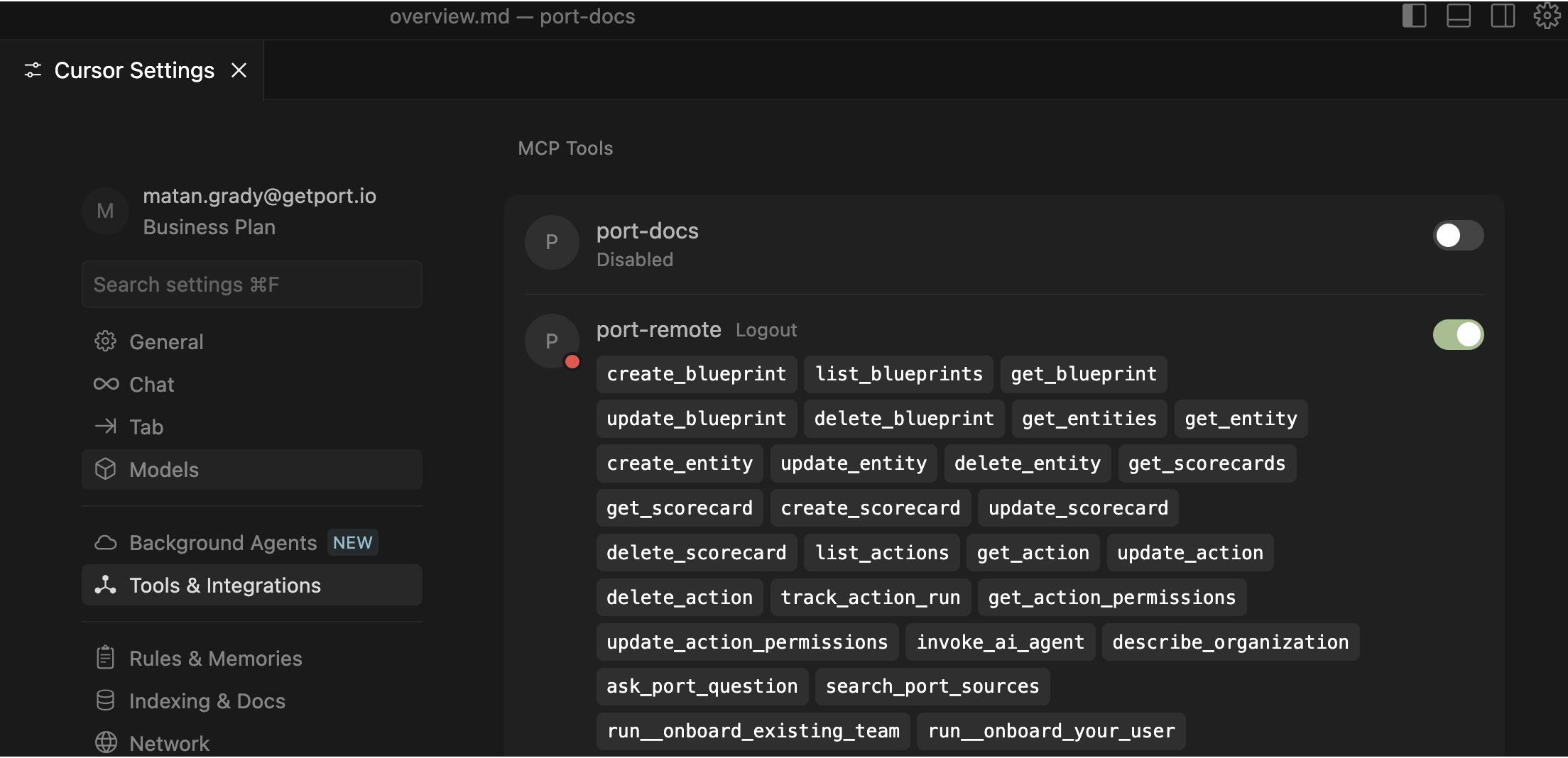
In Cursor, you can customize which tools are available through the UI after connecting to Port MCP. Once connected, you can select specific tools as shown below.
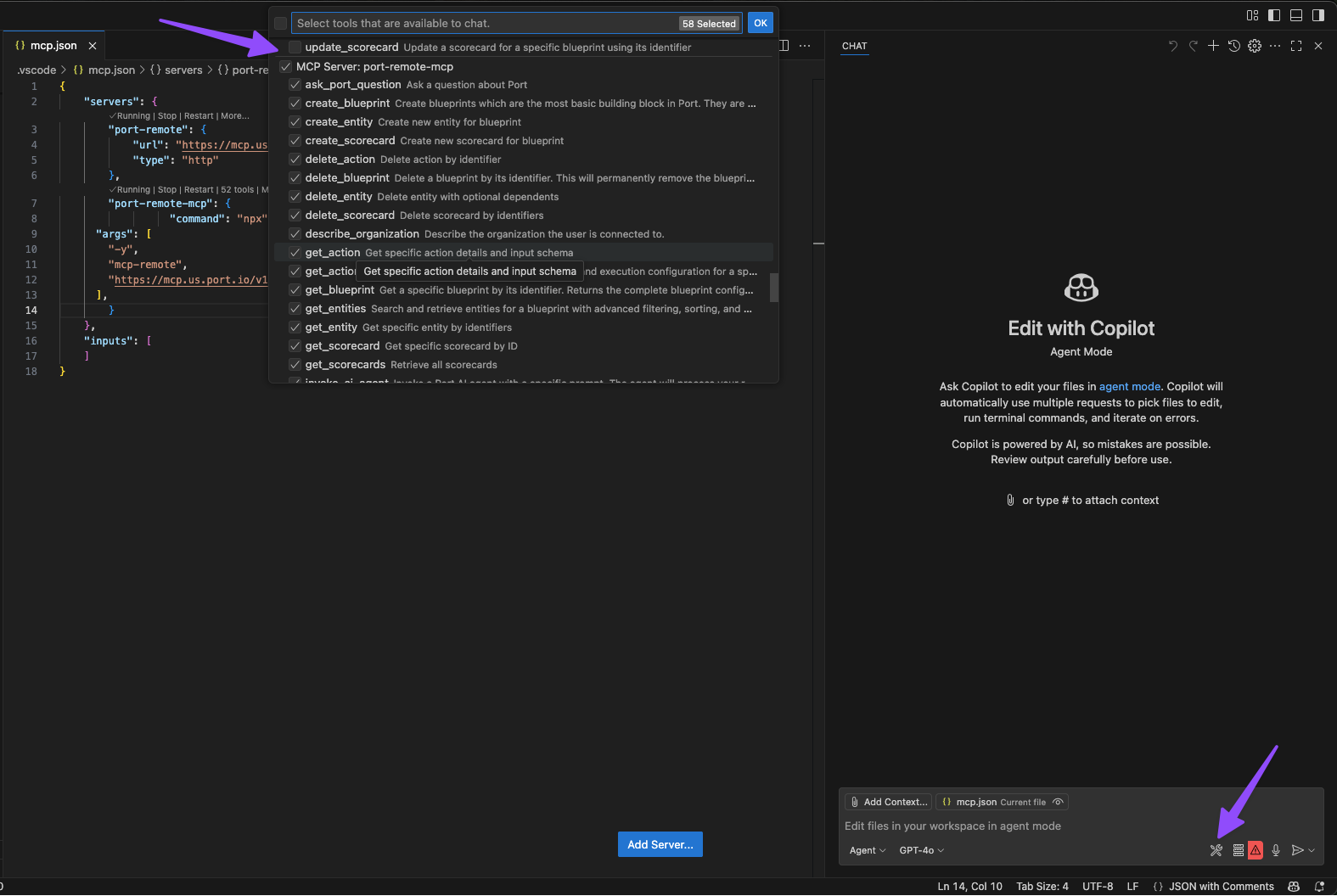
In VSCode, you can choose the tools through the UI after connecting to Port MCP.
When creating a custom connector in Claude, you can specify exactly which tools to expose instead of enabling everything.
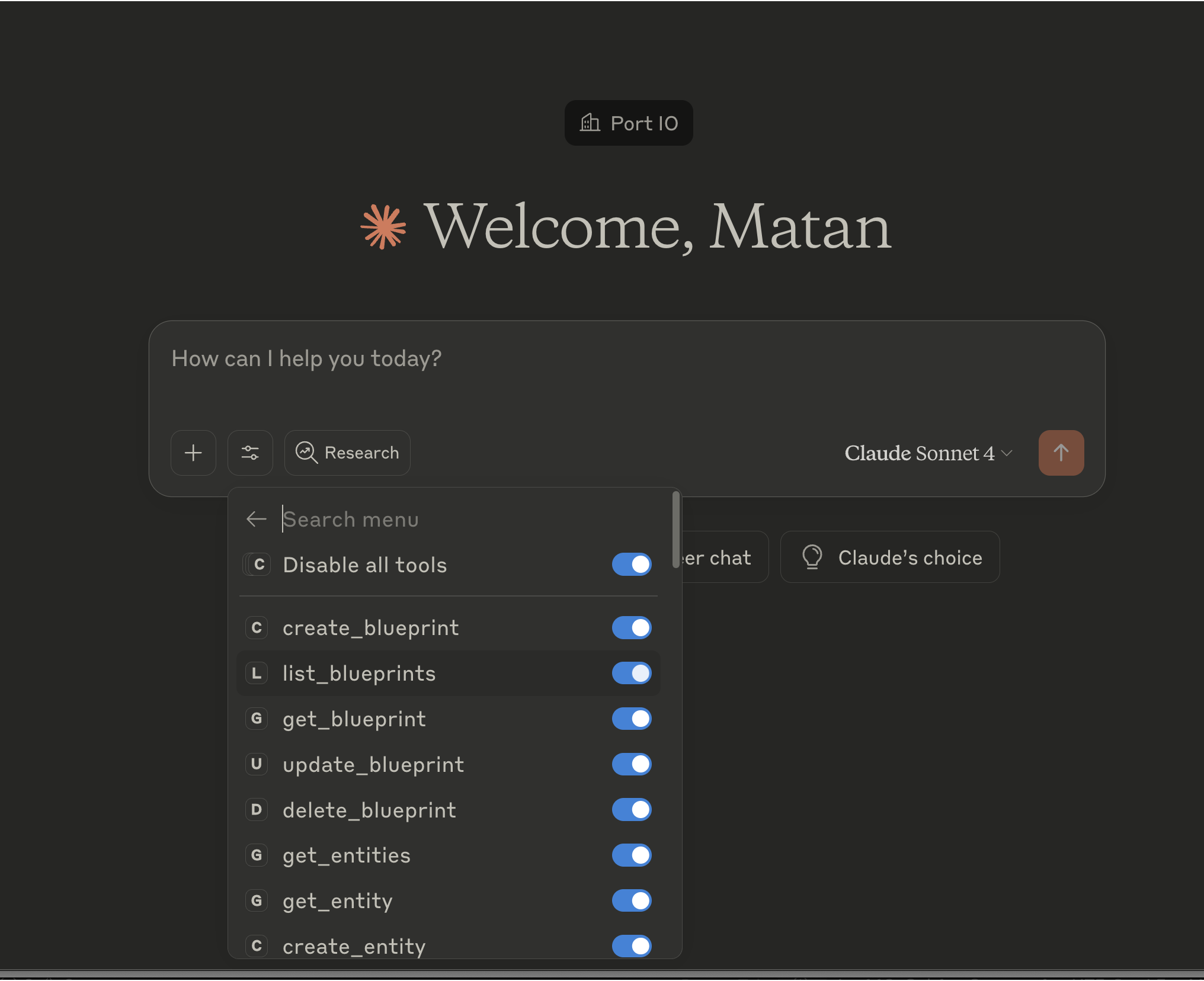
Refer to the Claude custom connector documentation for detailed instructions.