GitLab

Port's GitLab integration allows you to model GitLab resources in your software catalog and ingest data into them.
 GroupProjectMerge RequestPipelineJobIssueFileGroup with MembersProject with Members
This integration will be deprecated in the future and support for it will be discontinued soon.
To integrate Port with GitLab, we recommend using the GitLab V2 integration.
See the migration guide to learn how to migrate from v1 to v2 of the integration.
Prerequisites
- A GitLab account with admin privileges.
- A GitLab group account with the
apiscope. - Your Port user role is set to
Admin.
Setup
Create a GitLab group access token
A group access token can be used for the group it was generated at, as well as for all sub-groups underneath it.
The GitLab integration is able to query multiple GitLab root groups. To do so, it will require multiple group access tokens, each at the correct root group.
GitLab group access tokens example (click to expand)
For example, let's assume the following GitLab account structure:
GitLab account
.
├── microservices-group
│   ├──microservice1-group
│   └──microservice2-group
├── apis-group
│   ├── rest-api-group
│   └── graphql-api-group
In this example:
- To map only the
microservices-group, we require one group access token - one for themicroservices-group. - To map the
microservices-groupand all of its subgroups, we require only one group access token - one for themicroservices-group. - To map the
microservices-group, theapis-groupand all of their subgroups, we require only two group access tokens - one for themicroservices-groupand one for theapis-group. - To map the
microservice1-group, we have 2 options:- Create a group access token for the
microservices-groupand use the token mapping to select just themicroservice1-group. - Create a group access token for the
microservice1-groupdirectly.
- Create a group access token for the
See the Token Mapping section for more information.
The following steps will guide you how to create a GitLab group access token.
-
Sign in to GitLab and go to your desired group's settings page:
-
In the "Access Tokens" section, you need to provide the token details, including the name and an optional expiration date. Additionally, select the api scope, and then proceed to click on the "Create access token" button.
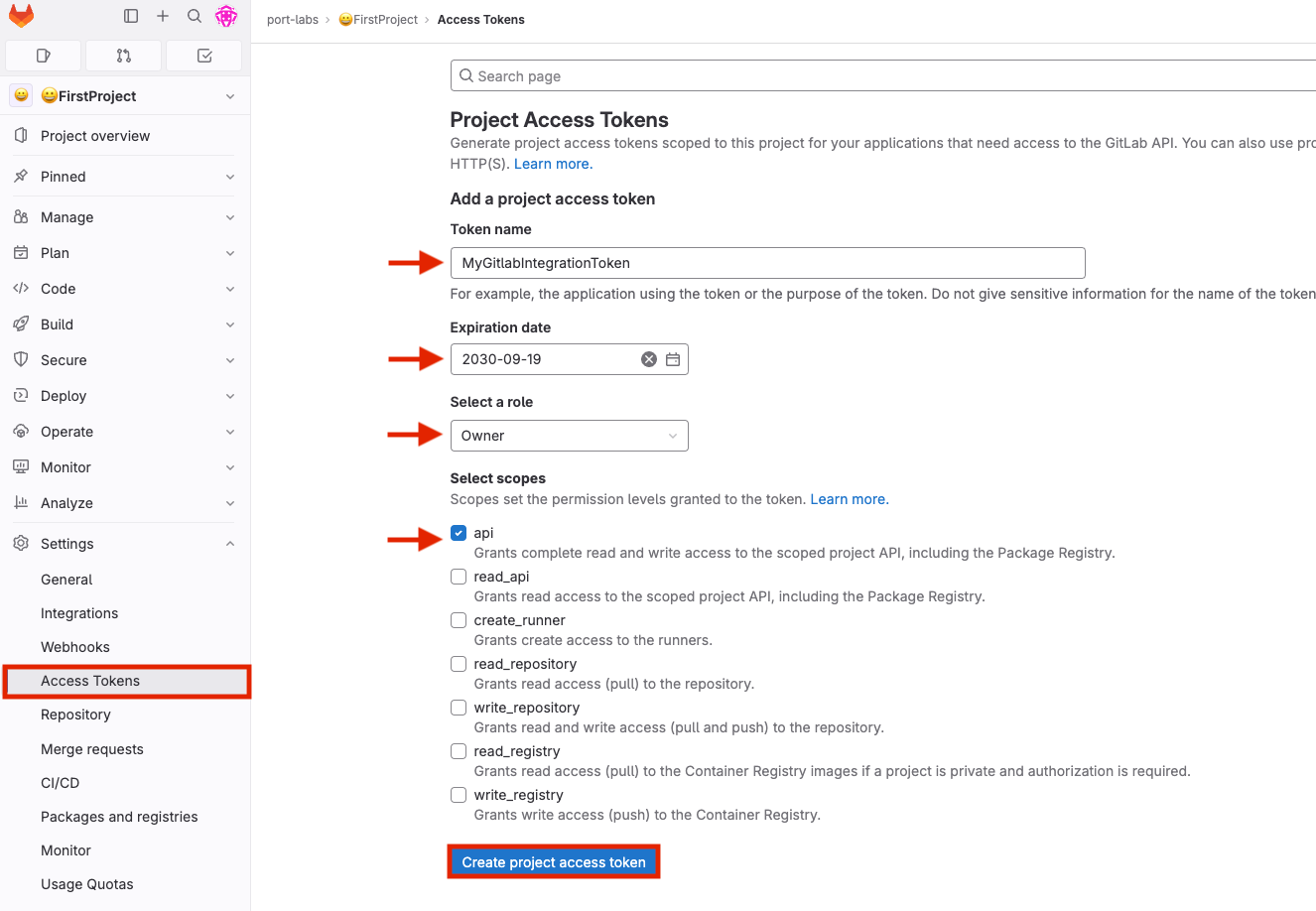 Lower permission levels
While
Ownerpermissions are recommended, you can use thefilterOwnedProjects: falseflag in the mapping to set lower permission levels (for more information, refer to the Advanced configurations tab). Please note that using lower permissions may lead to unexpected behavior. -
Click
Create group access token. -
Copy the generated token and use it when deploying the integration in the following steps.
Token Mapping
The GitLab integration supports fetching data related to specific paths in your GitLab groups. The integration is also able to fetch data from different GitLab parent groups by providing additional group tokens. In order to do so, you need to map the desired paths to the relevant access tokens.
The tokenMapping parameter supports specifying the paths that the integration will search for files and information in, using globPatterns.
Mapping format:
{"MY_FIRST_GITLAB_PROJECT_GROUP_TOKEN": ["**/MyFirstGitLabProject/**","**/MySecondGitLabProject/*"]}
Example:
{"glpat-QXbeg-Ev9xtu5_5FsaAQ": ["**/DevopsTeam/*Service", "**/RnDTeam/*Service"]}
When using the tokenMapping parameter in the integration's Helm installation, make sure to escape the necessary characters, for example:
--set integration.secrets.tokenMapping="\{\"glpat-oh1YXc54pR4eofx6hYy5\": [\"**\"]\}"
Multiple GitLab group access tokens example:
{"glpat-QXbeg-Ev9xtu5_5FsaAQ": ["**/DevopsTeam/*Service", "**/RnDTeam/*Service"],"glpat-xF7Ae-vXu5ts5_QbEgAQ9": ["**/MarketingTeam/*Service"]}
Configure Realtime webhook events
The appHost parameter is used specifically to enable the real-time functionality of the integration.
If it is not provided, the integration will continue to function correctly. In such a configuration, to retrieve the latest information from the target system, the scheduledResyncInterval parameter has to be set, or a manual resync will need to be triggered through Port's UI.
In order for the GitLab integration to update the data in Port on every change in the GitLab repository, you need to specify the appHost parameter.
The appHost parameter should be set to the url of your GitLab integration instance. In addition, your GitLab instance (whether it is GitLab SaaS or a self-hosted version of GitLab) needs to have the option to send webhook requests to the GitLab integration instance, so please configure your network accordingly.
The default webhook events behavior
The GitLab integration supports listening to GitLab webhooks and updating the relevant entities in Port accordingly.
Supported webhooks are Group webhooks and System hooks.
As part of the installation process, the integration will create a webhook in your GitLab instance, and will use it to listen to the relevant events.
There are a few points to consider before deciding on which webhook to choose :
-
If you choose system hooks, the integration will create a single webhook for the entire GitLab instance. If you choose group webhooks, the integration will create a webhook for each root group in your GitLab instance, unless you provide the
tokenGroupHooksOverrideMappingparameter- and then it will create a webhook for each specified group in this parameter. -
System hooks support far fewer event types than group webhooks. If you choose system hooks, the integration will not be able to update entities in Port for events such as
issues_events,pipeline_events, etc.Supported event types per webhook type (click to expand)
Group Webhooks support the following event types:
push_eventsissues_eventsjobs_eventsmerge_requests_eventspipeline_eventsreleases_eventstag_push_eventssubgroup_eventsconfidential_issues_eventsuser_remove_from_groupuser_update_for_groupuser_add_to_group
System Hooks support only:
push_eventsmerge_requests_eventsrepository_update_events
-
Creating a system hook requires admin privileges in GitLab. Due to this, the integration supports that the system hook will be created manually, and the integration will use it to listen to the relevant events.
Specific group webhooks
By default, if appHost is provided, the integration will create group webhooks for each root group in your GitLab instance. If you need to create webhooks only for specific groups, you should configure the tokenGroupHooksOverrideMapping parameter.
System webhooks
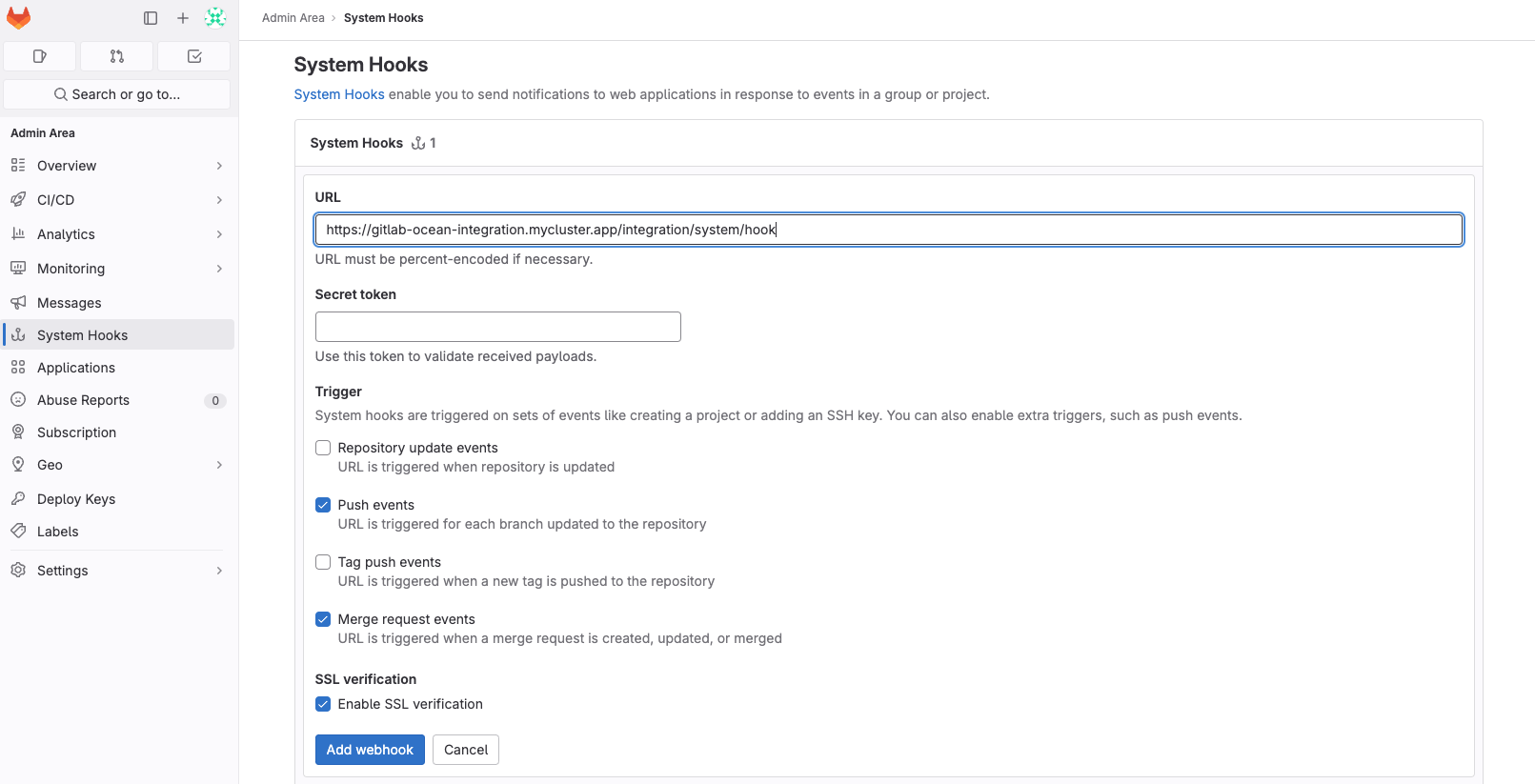
To create a system hook in GitLab, you must set useSystemHook: true and choose one of the following setup methods:
- Automatic Setup - Provide a token with admin privileges using the
tokenMappingparameter. - Manual Setup - Create the system hook yourself in GitLab:
- Follow GitLab's system hook setup guide.
- Set the URL to
{appHost}/integration/system/hook(e.g.,https://my-gitlab-integration.com/integration/system/hook). - Enable the supported triggers:
pushandmerge_request.
Due to GitLab webhook limitations, new repositories require special handling:
- A repository will only appear in Port after its first commit (GitLab webhooks don't support
project_createevents). - Empty repositories (no commits) will only appear after the next scheduled resync.
For more details, see GitLab's webhook events documentation.
Listen to specified groups
The integration can support listening to webhooks on specified groups, by configuring the tokenGroupHooksOverrideMapping parameter. This parameter is not required, and when you don't use it, the integration will listen to all of the root groups (if not using useSystemHooks=true).
Mapping format:
{"MY_FIRST_GROUPS_TOKEN": {"groups:"{"MY_FIRST_GROUP_FULL_PATH": {"events": [CHOSEN_EVENT_TYPES]}, "MY_OTHER_GROUP_FULL_PATH": {"events": [CHOSEN_EVENT_TYPES]}}}}
Example:
{"glpat-QXbeg-Ev9xtu5_5FsaAQ": {"groups": {"path/to/my-first-group": {"events": ["push_events", "merge_requests_events]}, "path/to/my-other-group": {"events": ["pipelines_events"]}}}}
You can configure multiple tokens, and multiple groups per token (the token should have admin access to those groups), but there are some rules:
- All of the tokens mentioned here must be contained in
tokenMapping. - A "groups" key is required for each token.
- All of the groups in all of the tokens must be non-hierarchical to each other, and not identical (duplicated).
- The group path is the full path in gitlab. If a group path is incorrect, the webhook will not be created.
- The events for each group must match the supported event types mentioned below. if you would like to have all the events provided in the webhook, you can use:
{"events" = []}, but not eliminate this key completely, because it is required.
Deploy the GitLab integration
Choose your preferred installation method below. Not sure which to pick? See the installation methods overview.
Configuration
Port integrations use a YAML mapping block to ingest data from the third-party api into Port.
The mapping makes use of the JQ JSON processor to select, modify, concatenate, transform and perform other operations on existing fields and values from the integration API.
Default mapping configuration
This is the default mapping configuration for this integration:
Default mapping configuration (click to expand)
deleteDependentEntities: true
createMissingRelatedEntities: true
enableMergeEntity: true
resources:
- kind: group-with-members
  selector:
    query: 'true'
    includeBotMembers: 'true'
    includeInheritedMembers: 'true'
  port:
    itemsToParse: .__members
    entity:
      mappings:
        identifier: .item.username
        title: .item.name
        blueprint: '"gitlabMember"'
        properties:
          link: .item.web_url
          state: .item.state
          email: .item.email
          locked: .item.locked
- kind: group-with-members
  selector:
    query: 'true'
    includeBotMembers: 'true'
  port:
    entity:
      mappings:
        identifier: .full_path
        title: .name
        blueprint: '"gitlabGroup"'
        properties:
          url: .web_url
          visibility: .visibility
          description: .description
        relations:
          gitlabMembers: .__members | map(.username)
- kind: project
  selector:
    query: 'true'
  port:
    entity:
      mappings:
        identifier: .path_with_namespace | gsub(" "; "")
        title: .name
        blueprint: '"gitlabRepository"'
        properties:
          url: .web_url
          readme: file://README.md
          description: .description
          language: .__languages | to_entries | max_by(.value) | .key
- kind: merge-request
  selector:
    query: 'true'
  port:
    entity:
      mappings:
        identifier: .id | tostring
        title: .title
        blueprint: '"gitlabMergeRequest"'
        properties:
          status: .state
          createdAt: .created_at
          updatedAt: .updated_at
          mergedAt: .merged_at
          link: .web_url
          leadTimeHours: (.created_at as $createdAt | .merged_at as $mergedAt | ($createdAt | sub("\\..*Z$"; "Z") | strptime("%Y-%m-%dT%H:%M:%SZ") | mktime) as $createdTimestamp | ($mergedAt | if . == null then null else sub("\\..*Z$"; "Z") | strptime("%Y-%m-%dT%H:%M:%SZ") | mktime end) as $mergedTimestamp | if $mergedTimestamp == null then null else (((($mergedTimestamp - $createdTimestamp) / 3600) * 100 | floor) / 100) end)
        relations:
          repository: .references.full | gsub("!.+"; "")
          assignees_git_lab: .assignees | map(.username)
          reviewers_git_lab: .reviewers | map(.username)
          creator_git_lab: .author.username
          reviewers:
            combinator: '"and"'
            rules:
            - operator: '"in"'
              property: '"git_lab_username"'
              value: .reviewers | map(.username)
          assignees:
            combinator: '"and"'
            rules:
            - operator: '"in"'
              property: '"git_lab_username"'
              value: .assignees | map(.username)
          service:
            combinator: '"and"'
            rules:
            - operator: '"="'
              property: '"git_lab_repository_identifier"'
              value: .references.full | gsub("!.+"; "")
          creator:
            combinator: '"and"'
            rules:
            - operator: '"="'
              property: '"git_lab_username"'
              value: .author.username
Mapping & examples per resource
Use the explorer below to view blueprints and mapping configurations for each resource type. For additional resources and advanced configurations, see the examples page.
Monitoring and sync status
To learn more about how to monitor and check the sync status of your integration, see the relevant documentation.
Capabilities
For detailed information about data ingestion capabilities, see the capabilities page.
Examples
Refer to the examples page for practical configurations and their corresponding blueprint definitions.
Relevant Guides
For relevant guides and examples, see the guides section.
GitOps
Port's GitLab integration also provides GitOps capabilities, refer to the GitOps page to learn more.
Advanced
Refer to the advanced page for advanced use cases and examples.