Onboard developers using internal docs and Port MCP
This guide shows how to onboard a new platform engineer using Cursor and Port MCP. You will connect Notion through Port MCP connectors, register a custom onboarding skill in Port, connect Cursor to Port MCP, and test onboarding questions grounded in your internal documentation.
Common use cases
- Reduced onboarding overhead: Reduce the time engineering teams spend answering repetitive onboarding questions from new hires.
- Standards enforcement: Surface approved scaffolding patterns and deployment processes so engineers follow org standards from day one.
- Architecture discovery: Help engineers understand existing decisions and system designs by querying connected Notion and Port content.
Prerequisites
This guide assumes you have:
- A Port account with the skills blueprint configured.
- Cursor IDE installed (you can also use VSCode, Claude, or other MCP-compatible tools).
- Relevant onboarding content in your knowledge sources - Notion pages and Port Context Lake are both supported.
- A Notion workspace with internal documentation such as an onboarding guide, architecture decision records, and approved tooling pages.
Connect to Notion remote MCP
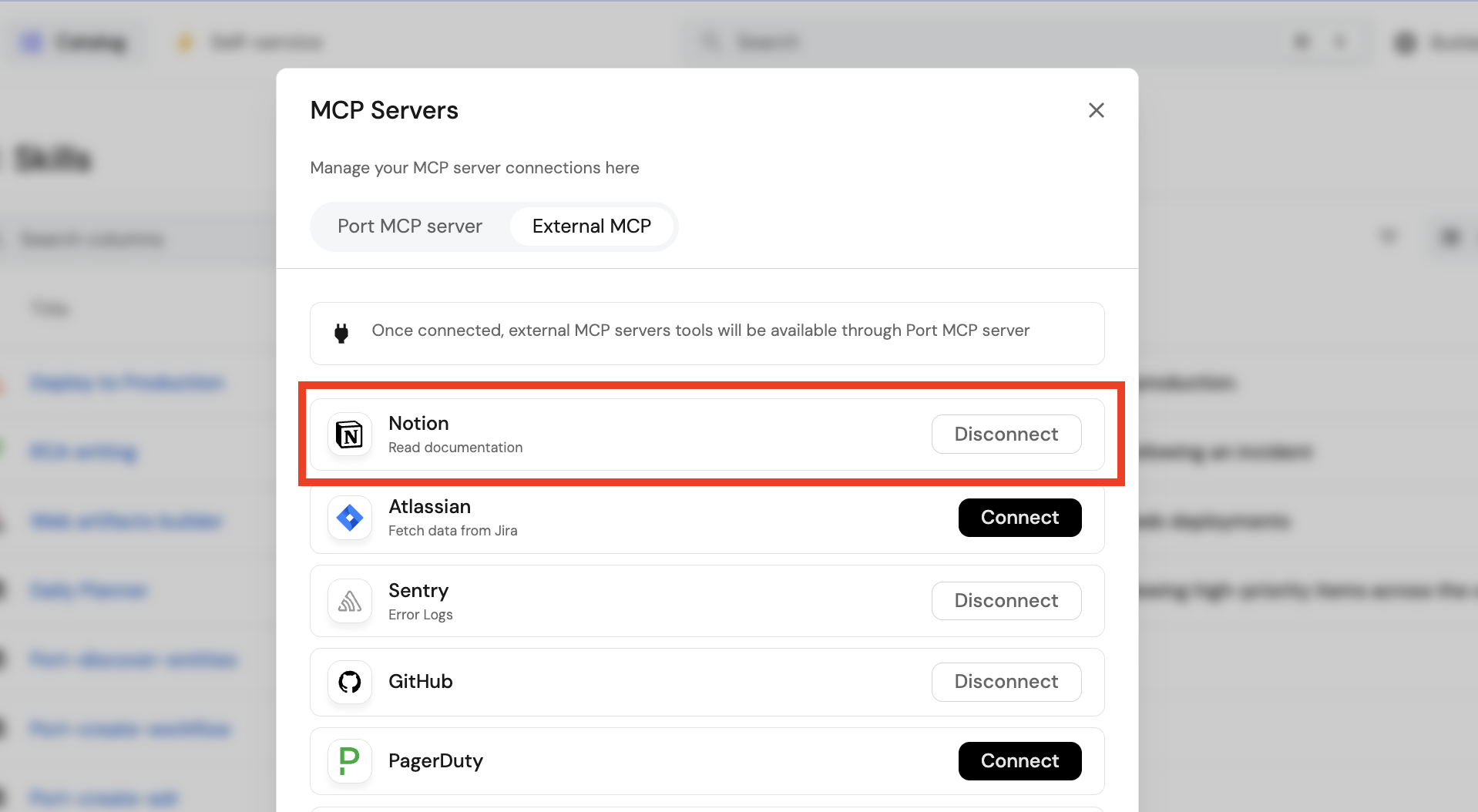
Connect to the Notion MCP server using Port MCP connector capabilities. You can learn more in MCP connectors.
-
Go to your developer portal in Port.
-
Click your avatar in the top-right corner.
-
Open MCP Servers.
-
Move to the MCP External tab.
-
Click Connect to Notion.
-
Complete the authentication flow for your account.
Create the onboarding skill
Create the skill that will be invoked whenever a developer asks an onboarding question. Ensure you have created the skills blueprint in Port before proceeding.
-
Go to the Skill catalog page in your portal.
-
Click the
+ Skillbutton. -
Toggle JSON Mode.
-
Copy and paste this JSON configuration:
Onboarding skill entity (click to expand)
{"identifier": "developer_onboarding_assistant","title": "developer-onboarding-assistant","icon": "Learn","team": [],"properties": {"description": "Answer developer onboarding and internal engineering questions using Notion, Port Context Lake, and connected MCP tools. Use when a developer asks about onboarding, how to do something internally, where to find docs, or what the approved devops patterns are.","instructions": "---\nname: developer-onboarding-assistant\ndescription: Answer developer onboarding and internal engineering questions using Notion, Port Context Lake, and connected MCP tools. Use when a developer asks about onboarding, how to do something internally, where to find docs, or what the approved patterns are.\n---\n\n# Developer onboarding assistant\n\nUse this skill to answer developer questions about internal systems, standards, and workflows.\nAlways ground answers in connected documentation sources (Notion, Port, Context Lake).\nDo not rely on generic knowledge if internal sources are available.\n\n---\n\n## Step 1: Understand the question\n\n1. Parse the user's question and identify:\n\n * **Intent** - onboarding, how-to, architecture, standards, troubleshooting\n * **Key entities** - service name, platform (e.g. OAuth), tool (Port, CI/CD, etc.)\n2. Normalize the query into 2-3 search-friendly phrases:\n\n * e.g.\n\n * \"onboard service port\"\n * \"microservice scaffolding standard\"\n * \"oauth architecture decision record\"\n\n---\n\n## Step 2: Discover available knowledge sources\n\n1. Use `list_entities` on `_mcp_server` where `exposed = true`\n2. Identify available knowledge sources:\n\n * **Notion** - tools like `notion-search`, `notion-fetch`, etc.\n * **Port** - `search_port_knowledge_sources`\n * **Context Lake** - blueprints that may contain internal docs (runbooks, ADRs, guides)\n3. Determine:\n\n * Is **Notion connected and usable**?\n * What **fallback sources** are available?\n\n---\n\n## Step 3: Search Notion (primary source)\n\nIf Notion tools are available:\n\n1. Use `notion-search` (or equivalent) with the normalized queries\n\n * Search across titles + content\n * Prioritize:\n\n * onboarding guides\n * runbooks\n * ADRs (Architecture Decision Records)\n * engineering standards\n\n2. Select the most relevant 1-3 documents:\n\n * Prefer exact matches (service name, platform, workflow)\n * Then semantic matches (related systems or patterns)\n\n3. Use `notion-fetch` (or equivalent) to retrieve full content\n\n4. Extract:\n\n * Key steps and instructions\n * Official patterns or standards\n * Links to related docs\n * Any warnings, prerequisites, or constraints\n\n---\n\n## Step 4: Fallback to Port and Context Lake\n\nIf:\n\n* Notion is **not connected**, OR\n* No relevant documents are found\n\nThen:\n\n1. Use `search_port_knowledge_sources` with the same queries\n2. Additionally, query Context Lake:\n\n * Use `list_entities` on relevant blueprints (e.g. `service`, `runbook`, `adr`, `documentation`)\n * Look for:\n\n * embedded documentation fields\n * related entities (services, systems, components)\n3. Extract any relevant internal guidance\n\n---\n\n## Step 5: Synthesize the answer\n\nProvide a clear, actionable response:\n\n1. **Direct answer first**\n\n * step-by-step if it is a how-to\n * concise explanation if conceptual\n\n2. **Ground in sources**\n\n * Reference the document(s) used (Notion or Port)\n * Prefer linking to the original doc if available\n\n3. **Structure based on intent**\n\n * **How-to** -> steps\n * **Standards** -> rules + rationale\n * **Architecture** -> summary + decisions\n\n4. If multiple sources:\n\n * Merge into a single consistent answer\n * Resolve conflicts (prefer most recent and authoritative)\n\n---\n\n## Step 6: Handle gaps gracefully\n\nIf no strong answer is found:\n\n1. Clearly state:\n\n * No relevant Notion or Port documentation was found\n2. Provide:\n\n * The closest related information (if any)\n3. Suggest next steps:\n\n * Who to ask (team, owner from Context Lake if available)\n * Where to look next (repo, Slack channel, etc.)\n\n---\n\n## Response guidelines\n\n* Be **concise but practical**\n* Prefer **internal truth over general best practices**\n* Always **prioritize Notion -> then Port -> then Context Lake**\n* Never hallucinate internal processes - if unsure, say so\n* Include **links to source documents** when available\n\n---\n\n## Example queries this skill handles\n\n* How do I onboard a new service into Port?\n* What's the approved way to scaffold a new microservice?\n* Where are the OAuth architecture decision records?\n* How do we handle secrets management in this org?\n* What's the deployment process for backend services?\n"},"relations": {}} -
Click
Registerto add the new skill.
Set up Port MCP server in Cursor
The Port MCP server enables you to interact with Port data and connected tools using natural language queries directly from your IDE.
Install Port MCP
Follow the instructions for your preferred tool below:
- Cursor
- VSCode
- Claude AI
- Codex CLI
To connect Cursor to Port's remote MCP, follow these steps:
-
Open Cursor settings
Go to Cursor settings, click on Tools & Integrations, and add a new MCP server.

-
Configure the MCP server
Add the appropriate configuration for your Port region:
- EU
- US
{"mcpServers": {"port-eu": {"url": "https://mcp.port.io/v1","headers": {"x-read-only-mode": "0"}}}}{"mcpServers": {"port-us": {"url": "https://mcp.us.port.io/v1","headers": {"x-read-only-mode": "0"}}}}Read-only modeThe
x-read-only-modeheader defaults to0, which allows all tools based on your permissions. You can change it to1to restrict the MCP server to only expose read-only tools. When set to1, write tools are completely hidden from the available tools list, ensuring you can only query data without making modifications.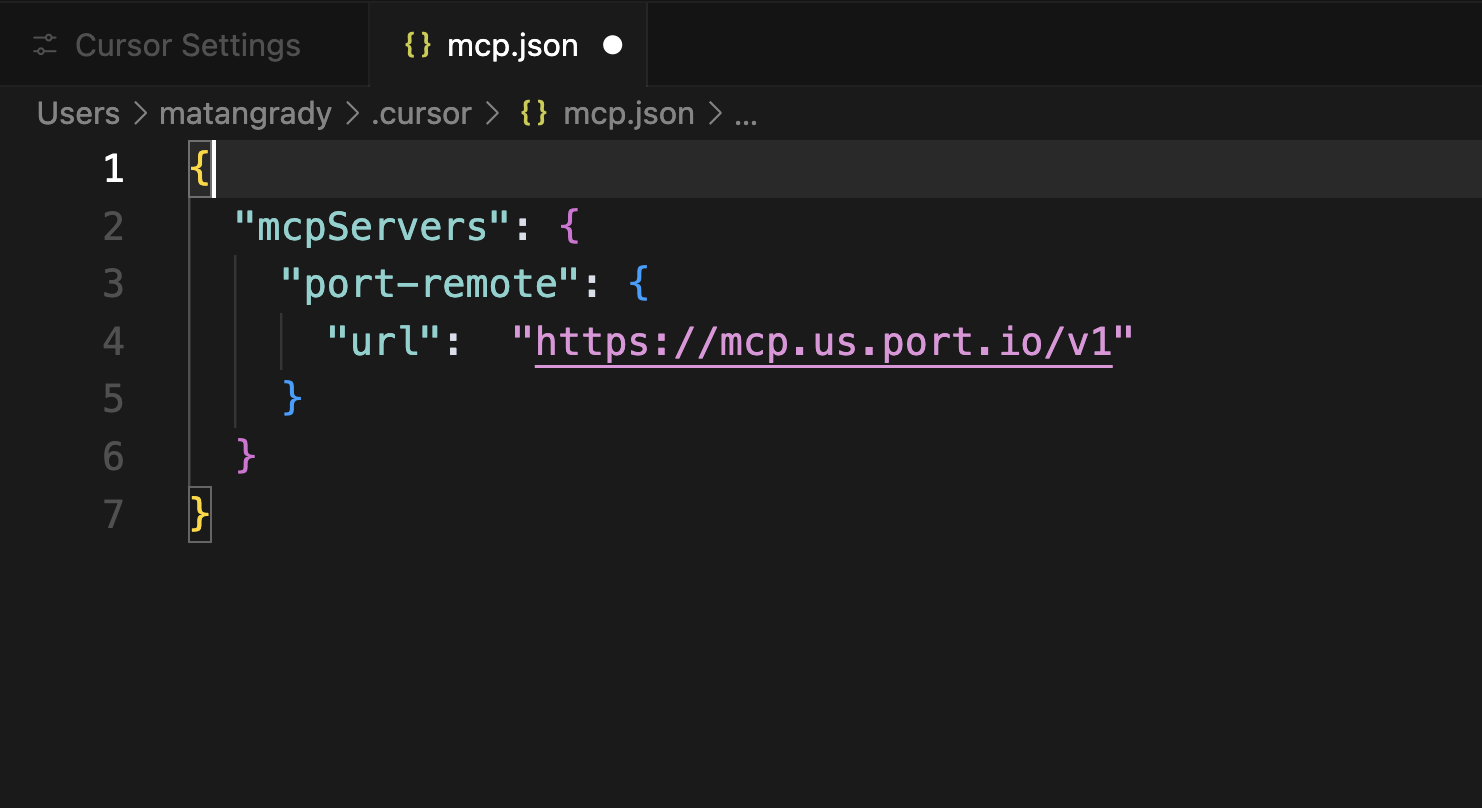
-
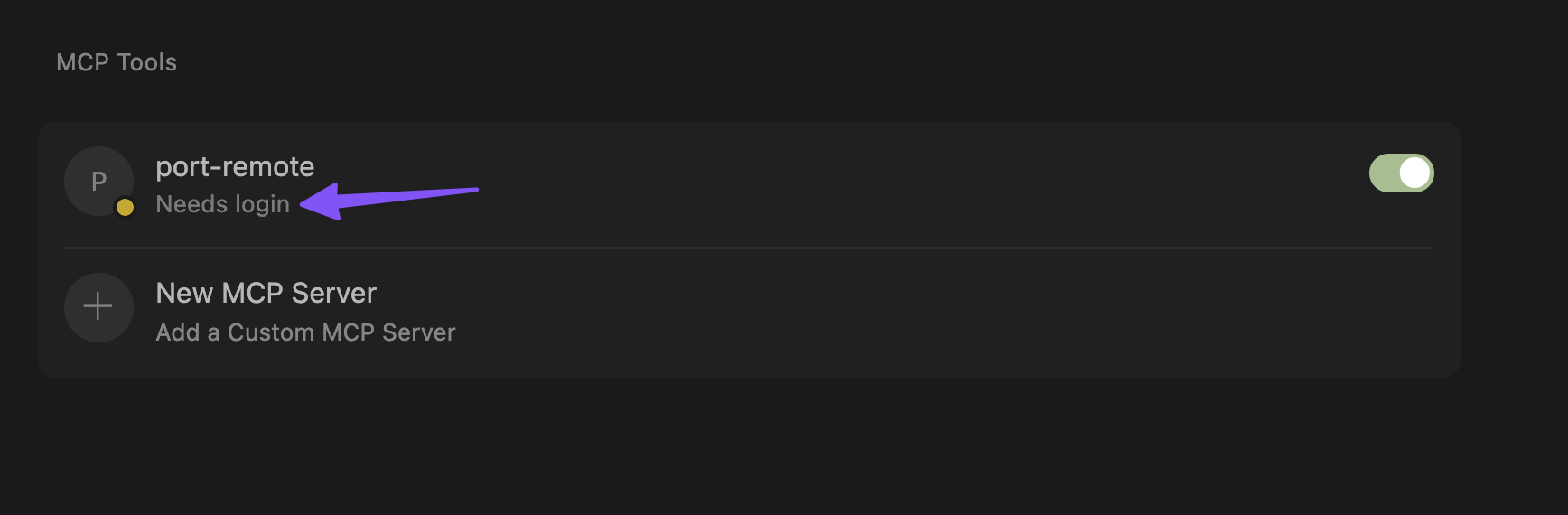
Authenticate with Port
Click on "Needs login" and complete the authentication flow in the window that opens.
-
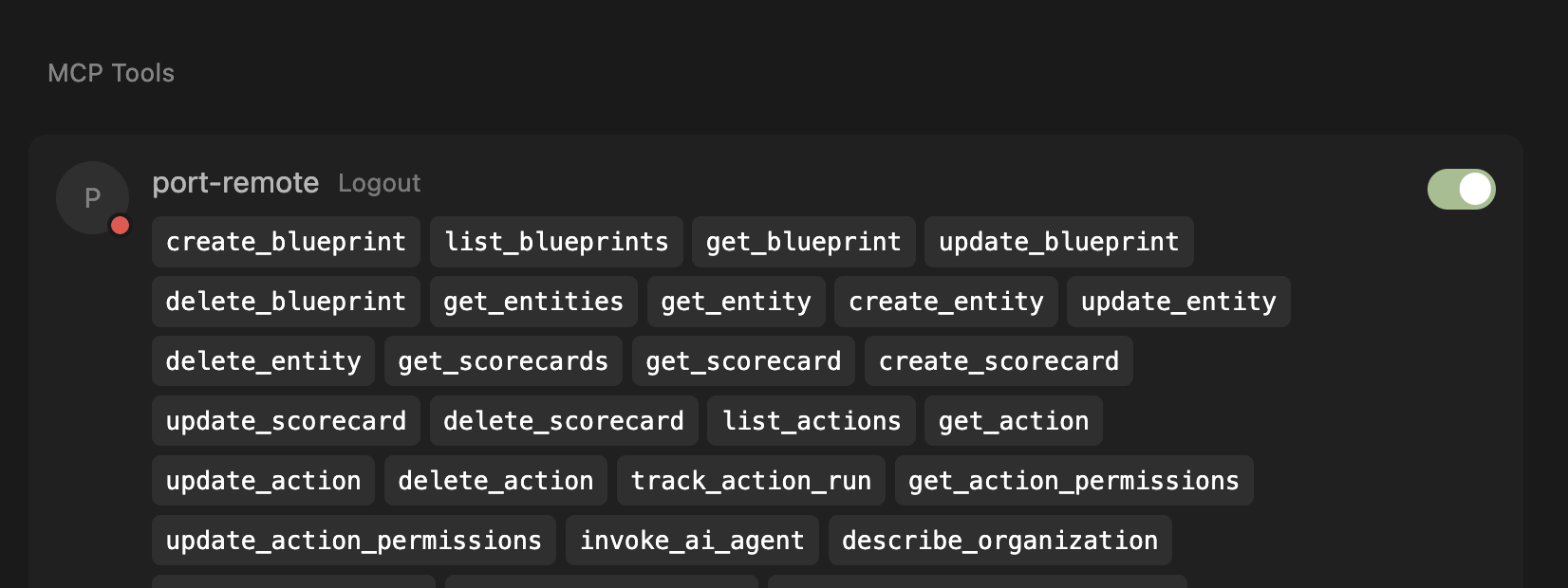
Verify connection
After successful authentication, you'll see the list of available tools from the MCP server.
To connect VSCode to Port's remote MCP server, follow these detailed steps. For complete instructions, refer to the official VS Code MCP documentation.
Before proceeding, ensure your VS Code is updated to the latest version and that MCP is enabled for your GitHub organization. You may need to enable "Editor preview features" under Settings > Code, planning, and automation > Copilot via admin access from your organization.
Prerequisites
This configuration uses the open-source mcp-remote package, which requires Node.js to be installed on your system. Before using the configuration, ensure Node.js is available by running:
npx -y mcp-remote --help
If you encounter errors:
- Missing Node.js: Install Node.js from nodejs.org
- Network issues: Check your internet connection and proxy settings
- Permission issues: You may need to run with appropriate permissions
Step 1: Configure MCP Server Settings
-
Open VS Code settings
-
Search for "MCP: Open user configuration" (or follow the instructions on a workspace installation)
-
Add the server configuration using the appropriate configuration for your region:
- EU
- US
{"mcpServers": {"port-vscode-eu": {"command": "npx","args": ["-y","mcp-remote","https://mcp.port.io/v1","--header","x-read-only-mode: 0"]}}}{"mcpServers": {"port-vscode-us": {"command": "npx","args": ["-y","mcp-remote","https://mcp.us.port.io/v1","--header","x-read-only-mode: 0"]}}}
WSL Users
If you are running VS Code on Windows with WSL, you may need to explicitly specifywsl as the command and provide the full path to npx (run which npx in your WSL terminal to find the path). For example:{
"mcpServers": {
"port-vscode": {
"command": "wsl",
"args": [
"/usr/bin/npx",
"-y",
"mcp-remote",
"https://mcp.port.io/v1",
"--header",
"x-read-only-mode: 0"
]
}
}
}
The x-read-only-mode header defaults to 0, which allows all tools based on your permissions. You can change it to 1 to restrict the MCP server to only expose read-only tools. When set to 1, write tools are completely hidden from the available tools list, ensuring you can only query data without making modifications.
Step 2: Start the MCP Server
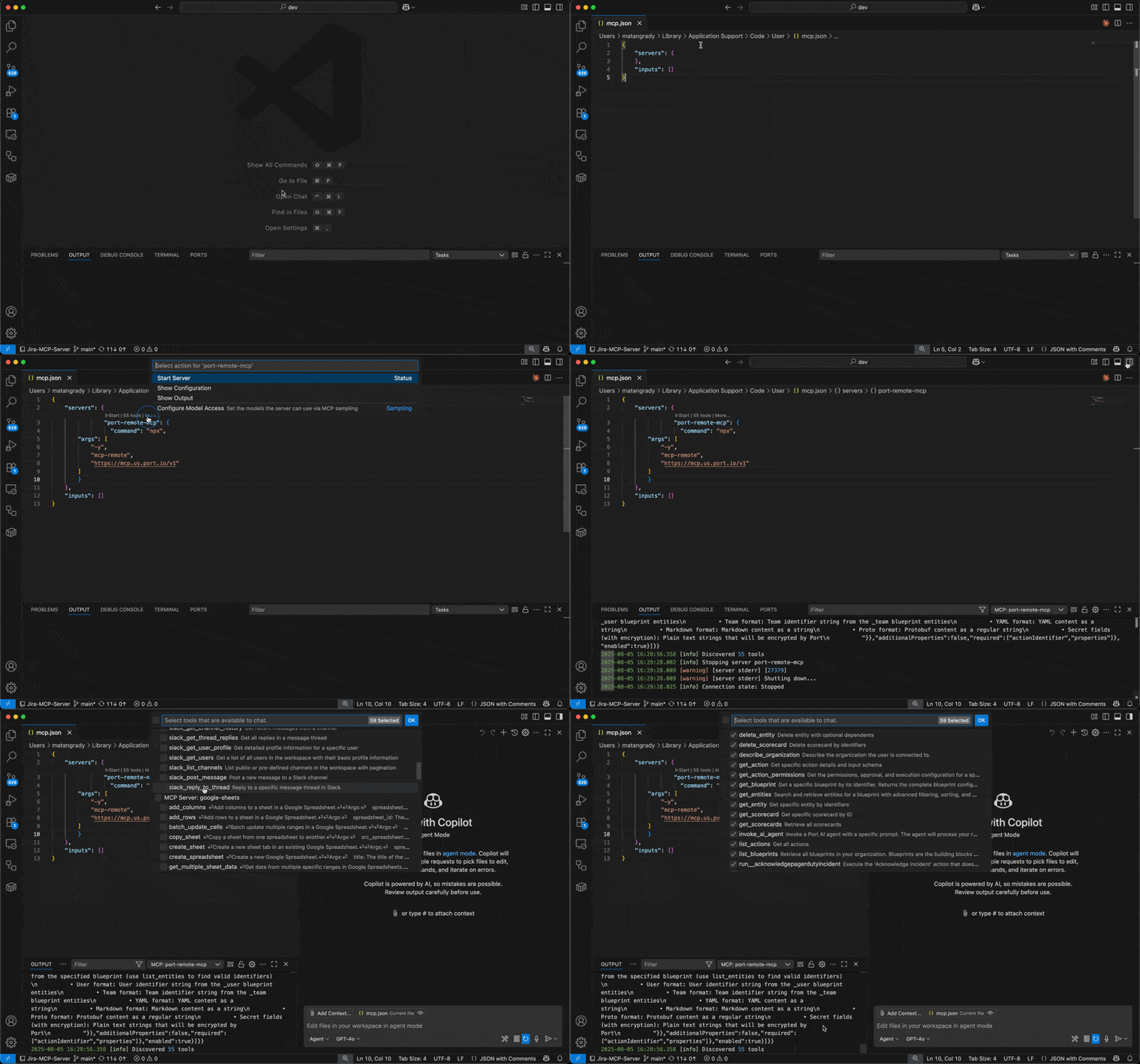
After adding the configuration, click on "Start" to initialize the MCP server
If you don't see the "Start" button, ensure:
- Your VS Code version is updated to the latest version
- MCP is enabled for your GitHub organization
- "Editor preview features" is enabled under Settings > Code, planning, and automation > Copilot
Step 3: Verify Connection
-
Once started, you should see the number of available tools displayed
-
If you don't see the tools count:
- Click on "More" to expand additional options
- Select "Show output" to view detailed logs
- Check the output panel for any error messages or connection issues
Step 4: Access Port Tools
-
Start a new chat session in VS Code
-
Click on the tools icon in the chat interface
-
You should now see Port tools available for use
To connect Claude AI (Desktop & Web) to Port's remote MCP, install the Port official connector from the Claude connectors library. For detailed instructions, refer to the official Anthropic documentation on custom connectors.
-
Open Port Connector page by visiting this link or searching for "Port" connector, and click Connect.
-
Enter your MCP server URL when prompted based on your Port region (if you're not sure what your Port region is, check your Port app base URL: if it contains "US", it's the US; otherwise, it's the EU).
- EU
- US
https://mcp.port.io/v1https://mcp.us.port.io/v1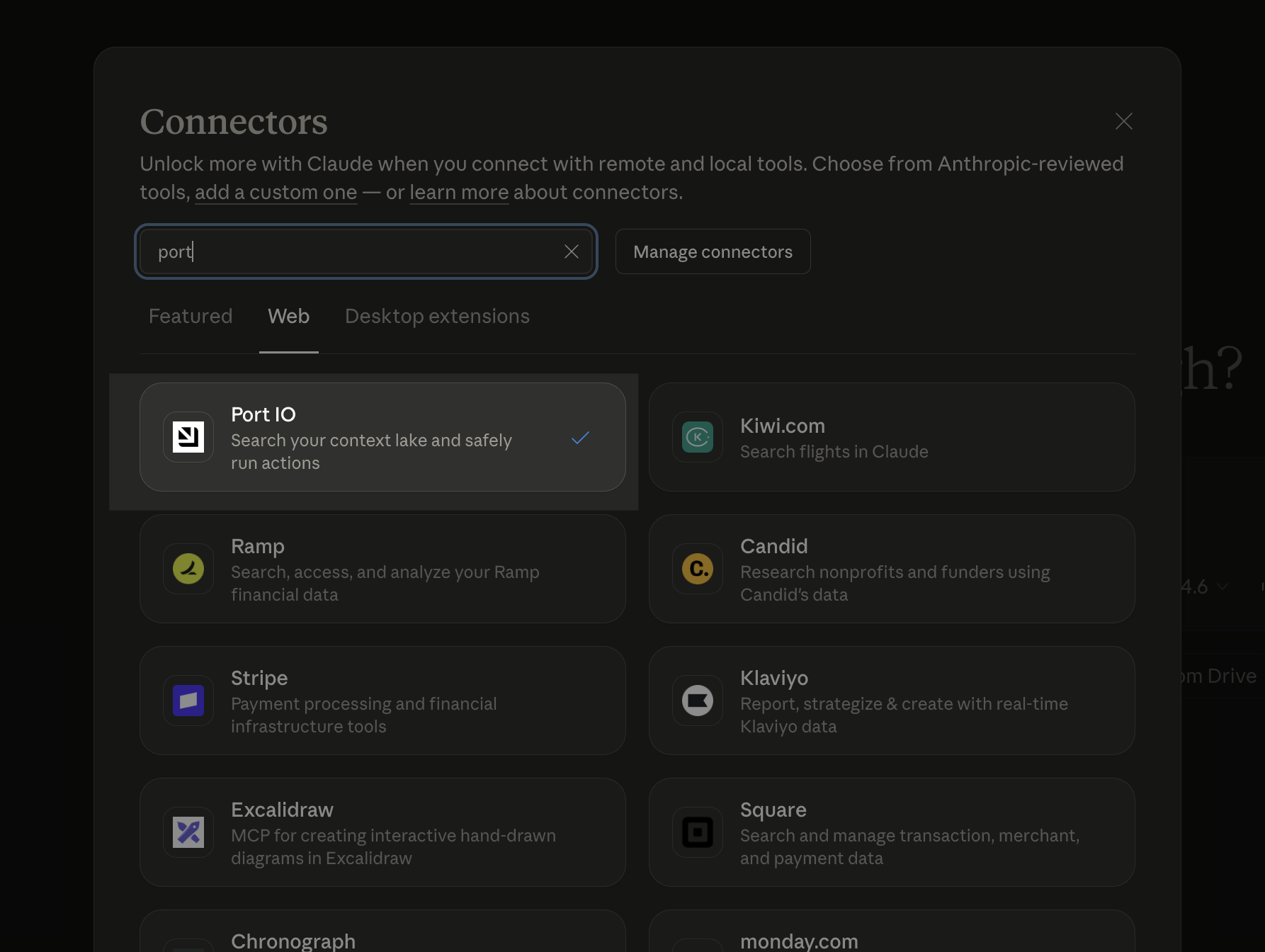
To connect OpenAI Codex CLI to Port's remote MCP server, install Codex CLI locally and add Port as a remote MCP server. For complete instructions, refer to the official Codex CLI documentation.
Prerequisites
- An OpenAI account with access to Codex CLI.
- The Codex CLI installed on your machine.
- Access to your Port account in the browser for OAuth authentication.
- Your Port region. If your Port app URL contains
us, use the US MCP URL. Otherwise, use the EU MCP URL. - Node.js installed on your machine.
Step 1: Install Codex CLI
Run the following command to install Codex CLI:
npm install -g @openai/codex
After installation, verify that Codex CLI is available:
codex --version
Step 2: Sign in to Codex
Start Codex and complete the sign-in flow:
codex
Step 3: Add Port MCP
Run the following command based on your Port region:
- EU
- US
codex mcp add port-eu --url https://mcp.port.io/v1
codex mcp add port-us --url https://mcp.us.port.io/v1
Step 4: Authenticate with Port
After adding the server, authenticate using OAuth:
- EU
- US
codex mcp login port-eu
codex mcp login port-us
Complete the Port authentication flow in the browser window that opens.
Step 5: Verify the connection
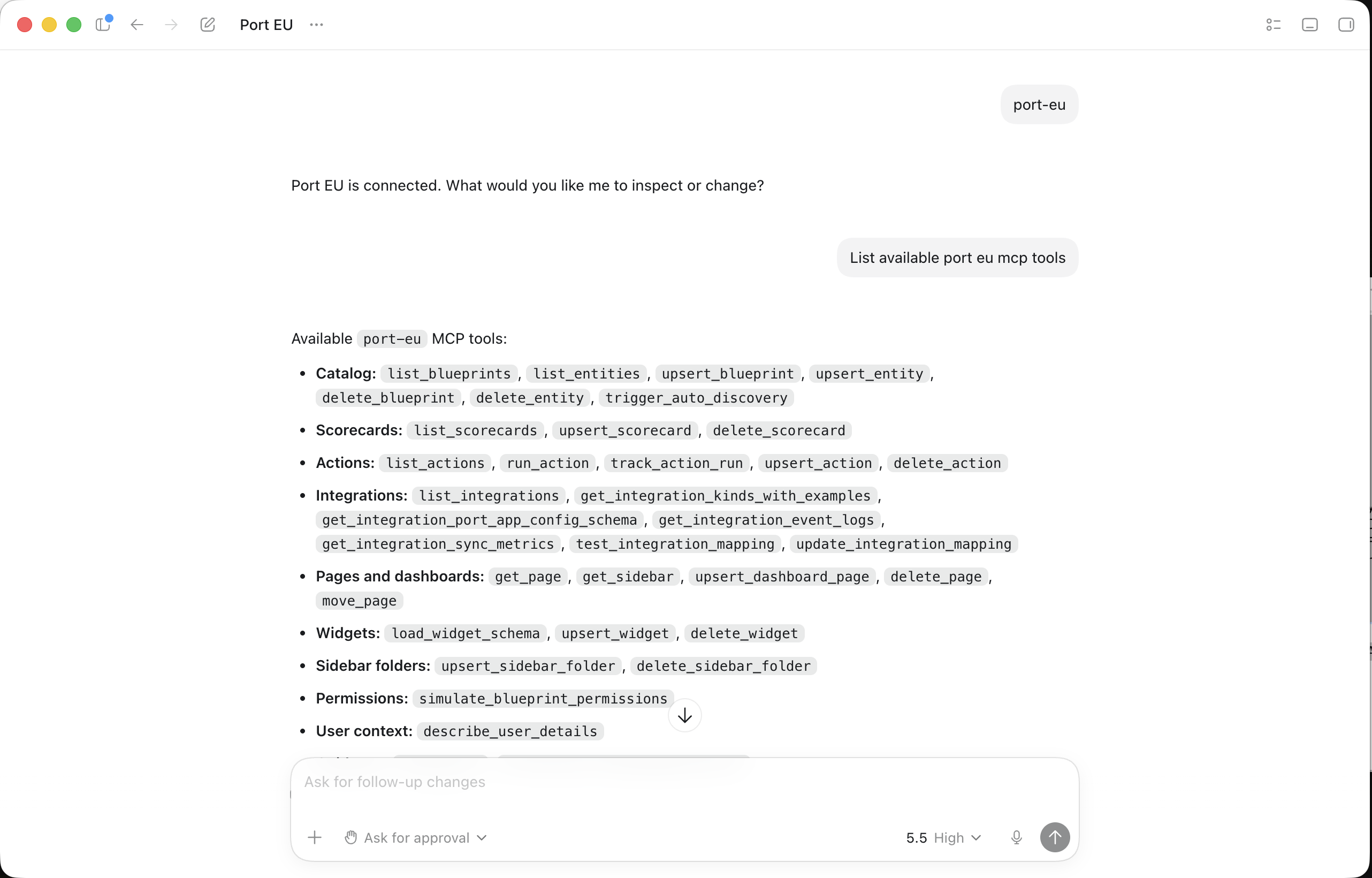
Start a Codex session and run /mcp and type port-eu or port-us to verify that the Port MCP server is connected and showing its tools.
Step 6: Query Port through Codex
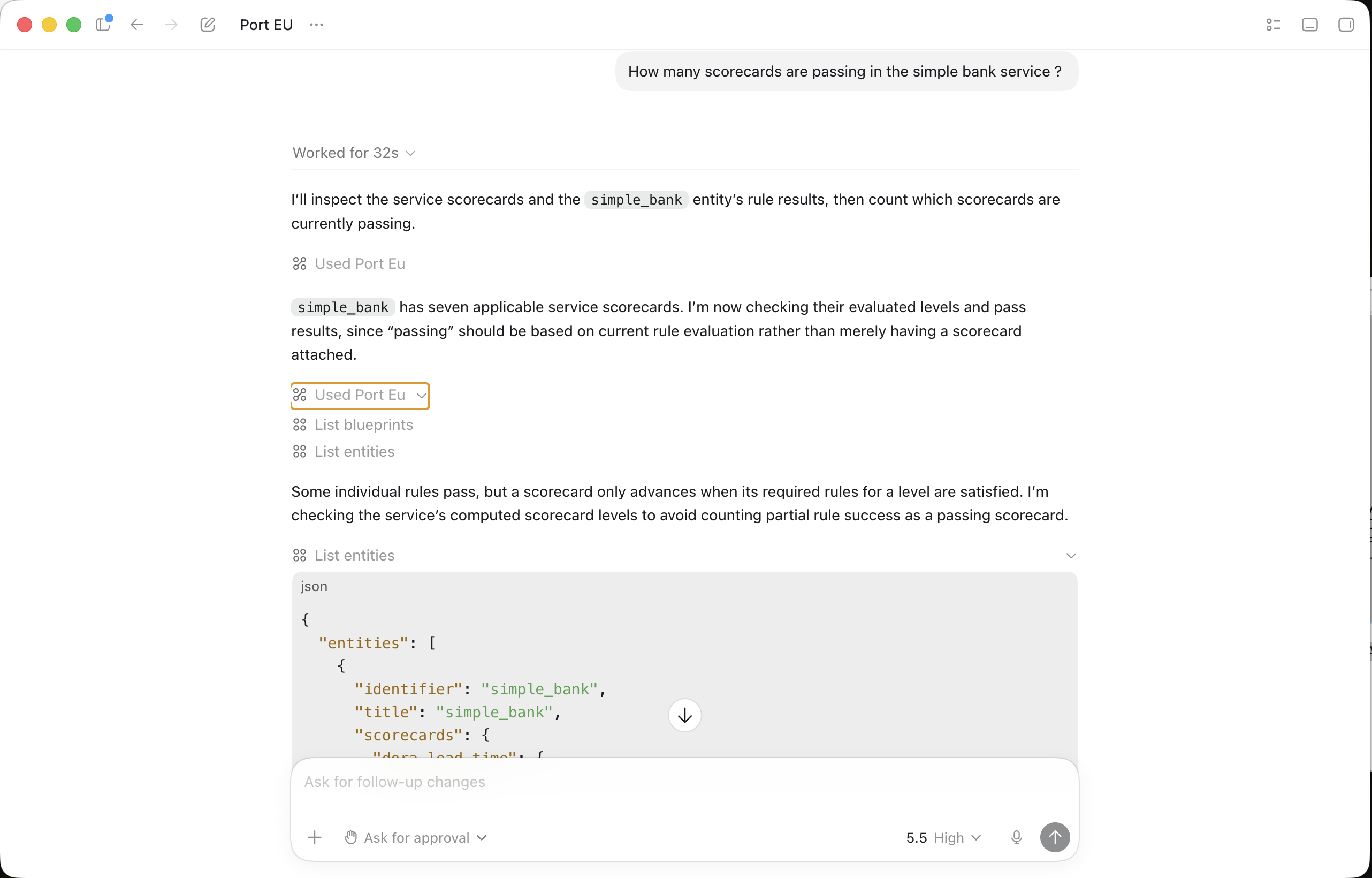
Once connected, you can interact with your Port catalog using natural language. Codex will automatically use the Port MCP tools to fulfill your requests. Try these example prompts:
- "Show me all services owned by the backend team"
- "What scorecards are failing for my production services?"
- "Who is the owner of the payments service?"
Optional: Configure Codex manually
You can also add the MCP server directly to your ~/.codex/config.toml file:
- EU
- US
[mcp_servers.port-eu]
url = "https://mcp.port.io/v1"
enabled = true
[mcp_servers.port-us]
url = "https://mcp.us.port.io/v1"
enabled = true
After editing the file, run the matching codex mcp login command from step 4.
You can restrict Codex to read-only Port tools by adding the x-read-only-mode header to your Codex MCP configuration. See the MCP server headers section for the full configuration.
Test your setup
Once Port MCP is configured in Cursor, test the onboarding workflow with the queries below.
Start a new chat session
- Open a new chat session in Cursor (
Cmd/Ctrl + L). - Confirm Port tools appear in the tools panel.
- Start your conversation with onboarding queries.
Example onboarding queries
Here are practical queries you can use to validate that the skill is pulling from your connected Notion and Port content.
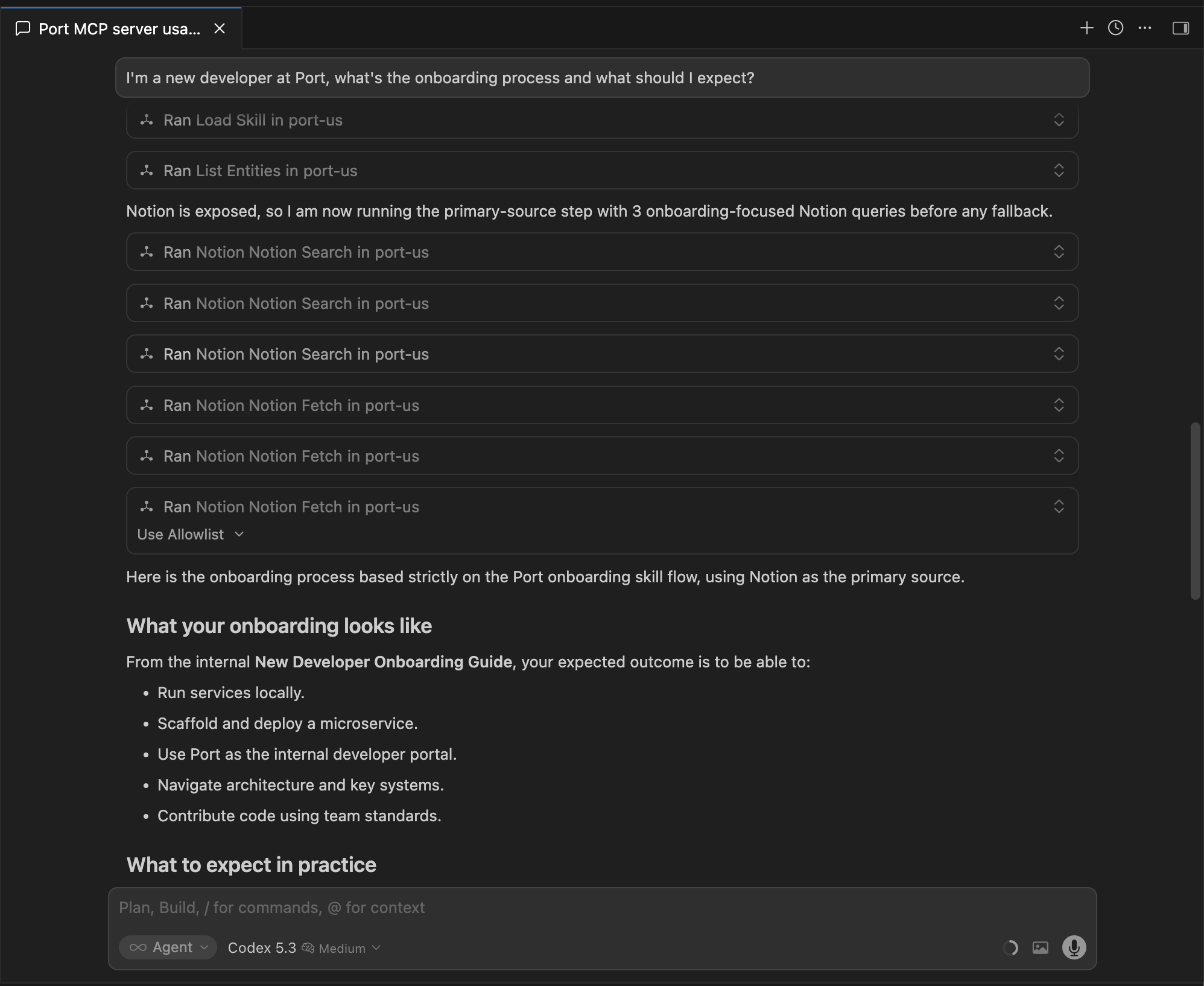
Ask:
"I'm a new developer — what's the onboarding process and what should I do first?"
Expected result:
-
The response should pull from your Developer onboarding guides in Notion.
Ask:
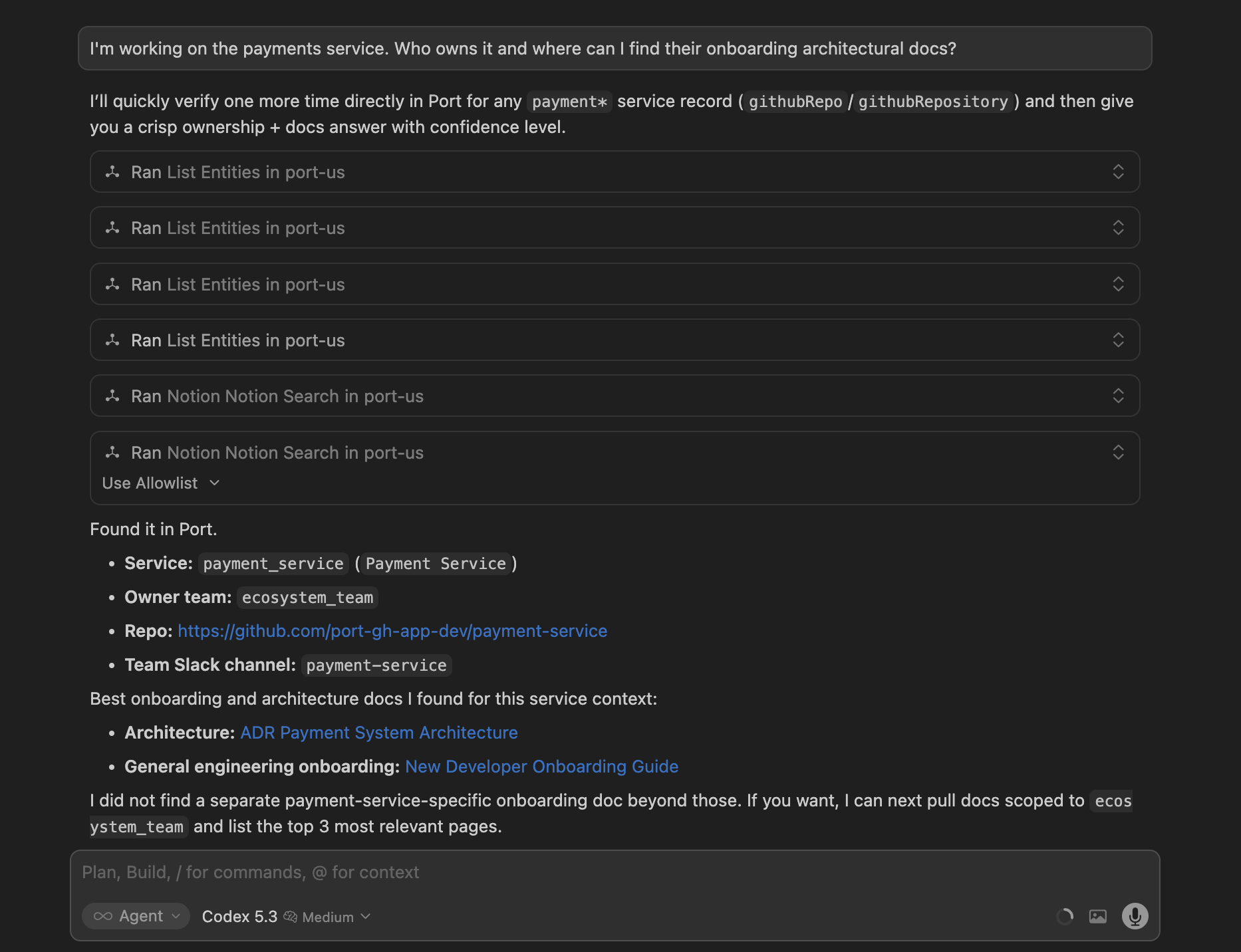
"I'm working on the payments service. Who owns it and where can I find their onboarding architectural docs?"
Expected result:
-
The response should include service metadata from Port's context lake. It should also surface your Architecture decision records page in Notion and reference the relevant ADR entries, such as the decision to adopt Port MCP Connectors as the approved AI gateway.
What to check
- Every answer is grounded in your Notion pages and Port Context Lake - not generic AI responses.
- The assistant references specific content from your internal docs (ADR numbers, tool names, exact steps).
- The assistant does not invent internal processes, links, or tooling that is not in your sources.
- If a topic is not covered in any connected source, the assistant says so and suggests where to look next.