Set up Jira project health scorecards
This guide demonstrates how to track the health and operational maturity of your Jira projects using scorecards in Port. By tracking Jira project metrics like stale tickets, open customer incidents, and compliance issues, you can highlight risks and nudge teams toward better practices.
Common use cases
- Ensure postmortems are followed up: Catch open incident action items that were never resolved.
- Track compliance risks: Identify Jira projects with lingering legal or regulatory issues.
Prerequisites
- You have a Port account and have completed the onboarding process.
- Optional - You have installed Port's Jira integration.
Set up data model
If you haven't installed Port's Jira integration, you will need to manually create blueprints for Jira Project and Jira Issue.
We highly recommend that you install the Jira integration to have such resources automatically set up for you.
Create or update the Jira project blueprint
In this setup, we will create or update the Jira Project blueprint.
Skip to the update Jira project blueprint section if you already have the blueprint.
Create the Jira project blueprint
-
Go to the Data model page in Port.
-
Click on
+ Blueprint. -
Click on the
{...} Edit JSONbutton. -
Copy and paste the following JSON configuration:
Jira Project Blueprint (click to expand)
{"identifier": "jiraProject","description": "A Jira project","title": "Jira Project","icon": "Jira","schema": {"properties": {"url": {"title": "Project URL","type": "string","format": "url","description": "URL to the project in Jira"},"totalIssues": {"title": "Total Issues","type": "number","description": "The total number of issues in the project"}},"required": []},"mirrorProperties": {},"calculationProperties": {},"aggregationProperties": {"totalComplianceIssues": {"title": "Total Compliance Issues","icon": "DefaultProperty","type": "number","target": "jiraIssue","query": {"combinator": "and","rules": [{"property": "labels","operator": "containsAny","value": ["compliance"]}]},"calculationSpec": {"func": "count","calculationBy": "entities"}},"openUrgentBugs": {"title": "Open Urgent Bugs","icon": "DefaultProperty","type": "number","target": "jiraIssue","query": {"combinator": "and","rules": [{"property": "status","operator": "!=","value": "Done"},{"property": "issueType","operator": "=","value": "Bug"},{"property": "priority","operator": "=","value": "High"}]},"calculationSpec": {"func": "count","calculationBy": "entities"}},"issuesWithoutAssignee": {"title": "Issues Without Assignee","icon": "DefaultProperty","type": "number","target": "jiraIssue","query": {"combinator": "and","rules": [{"property": "assignee","operator": "isEmpty"}]},"calculationSpec": {"func": "count","calculationBy": "entities"}},"frequentCustomerIncidents": {"title": "Frequent Customer Incidents","icon": "DefaultProperty","type": "number","target": "jiraIssue","query": {"combinator": "and","rules": [{"property": "labels","operator": "containsAny","value": ["customer"]},{"property": "updated","operator": "between","value": {"preset": "lastMonth"}}]},"calculationSpec": {"func": "count","calculationBy": "entities"}},"staleTickets": {"title": "Stale Tickets","icon": "DefaultProperty","type": "number","description": " Issues untouched for 30+ days suggest poor ticket hygiene or delivery risk","target": "jiraIssue","query": {"combinator": "and","rules": [{"property": "issueType","operator": "=","value": "Task"},{"property": "status","operator": "=","value": "To Do"},{"property": "created","operator": "between","value": {"preset": "lastMonth"}}]},"calculationSpec": {"func": "count","calculationBy": "entities"}}},"relations": {}} -
Click
Saveto create the blueprint.
Update the Jira project blueprint
Let's add aggregation properties to the Jira Project blueprint. Follow the steps below to add these properties:
-
Go to the Data model page in Port.
-
Search for the
Jira Projectblueprint. -
Click on
{...} Edit JSON. -
Copy and paste the following JSON snippet into the
aggregationPropertiesobject:Aggregation properties (click to expand)
"totalComplianceIssues": {"title": "Total Compliance Issues","icon": "DefaultProperty","type": "number","target": "jiraIssue","query": {"combinator": "and","rules": [{"property": "labels","operator": "containsAny","value": ["compliance"]}]},"calculationSpec": {"func": "count","calculationBy": "entities"}},"openUrgentBugs": {"title": "Open Urgent Bugs","icon": "DefaultProperty","type": "number","target": "jiraIssue","query": {"combinator": "and","rules": [{"property": "status","operator": "!=","value": "Done"},{"property": "issueType","operator": "=","value": "Bug"},{"property": "priority","operator": "=","value": "High"}]},"calculationSpec": {"func": "count","calculationBy": "entities"}},"issuesWithoutAssignee": {"title": "Issues Without Assignee","icon": "DefaultProperty","type": "number","target": "jiraIssue","query": {"combinator": "and","rules": [{"property": "assignee","operator": "isEmpty"}]},"calculationSpec": {"func": "count","calculationBy": "entities"}},"frequentCustomerIncidents": {"title": "Frequent Customer Incidents","icon": "DefaultProperty","type": "number","target": "jiraIssue","query": {"combinator": "and","rules": [{"property": "labels","operator": "containsAny","value": ["customer"]},{"property": "updated","operator": "between","value": {"preset": "lastMonth"}}]},"calculationSpec": {"func": "count","calculationBy": "entities"}},"staleTickets": {"title": "Stale Tickets","icon": "DefaultProperty","type": "number","description": " Issues untouched for 30+ days suggest poor ticket hygiene or delivery risk","target": "jiraIssue","query": {"combinator": "and","rules": [{"property": "issueType","operator": "=","value": "Task"},{"property": "status","operator": "=","value": "To Do"},{"property": "created","operator": "between","value": {"preset": "lastMonth"}}]},"calculationSpec": {"func": "count","calculationBy": "entities"}} -
Click
Saveto update the blueprint.
Create the Jira issue blueprint
We will create the Jira Issue blueprint.
Skip to the set up data source mapping section if you already have the blueprint.
-
Go to the Data model page in Port.
-
Click on
+ Blueprint. -
Click on the
{...} Edit JSONbutton. -
Copy and paste the following JSON configuration:
Jira Issue Blueprint (click to expand)
{"identifier": "jiraIssue","title": "Jira Issue","icon": "Jira","schema": {"properties": {"url": {"title": "Issue URL","type": "string","format": "url","description": "URL to the issue in Jira"},"status": {"title": "Status","type": "string","description": "The status of the issue"},"issueType": {"title": "Type","type": "string","description": "The type of the issue"},"components": {"title": "Components","type": "array","items": {"type": "string"},"description": "The components related to this issue"},"creator": {"title": "Creator","type": "string","description": "The user that created to the issue","format": "user"},"priority": {"title": "Priority","type": "string","description": "The priority of the issue"},"labels": {"items": {"type": "string"},"title": "Labels","type": "array"},"created": {"title": "Created At","type": "string","description": "The created datetime of the issue","format": "date-time"},"updated": {"title": "Updated At","type": "string","description": "The updated datetime of the issue","format": "date-time"},"resolutionDate": {"title": "Resolved At","type": "string","description": "The datetime the issue changed to a resolved state","format": "date-time"}}},"calculationProperties": {"handlingDuration": {"title": "Handling Duration (Days)","icon": "Clock","description": "The amount of time in days from issue creation to issue resolution","calculation": "if (.properties.resolutionDate != null and .properties.created != null) then ((.properties.resolutionDate[0:19] + \"Z\" | fromdateiso8601) - (.properties.created[0:19] + \"Z\" | fromdateiso8601)) / 86400 else null end","type": "number"}},"mirrorProperties": {},"aggregationProperties": {},"relations": {"project": {"target": "jiraProject","title": "Project","description": "The Jira project that contains this issue","required": false,"many": false},"parentIssue": {"target": "jiraIssue","title": "Parent Issue","required": false,"many": false},"subtasks": {"target": "jiraIssue","title": "Subtasks","required": false,"many": true},"assignee": {"target": "jiraUser","title": "Assignee","required": false,"many": false},"reporter": {"target": "jiraUser","title": "Reporter","required": false,"many": false}}} -
Click
Saveto create the blueprint.
Set up data source mapping
-
Go to your Data Source page.
-
Select the Jira ocean integration.
-
Add the following YAML block into the editor to ingest data from Jira:
Jira integration configuration (click to expand)
createMissingRelatedEntities: truedeleteDependentEntities: trueresources:- kind: projectselector:query: "true"port:entity:mappings:identifier: .keytitle: .nameblueprint: '"jiraProject"'properties:url: (.self | split("/") | .[:3] | join("/")) + "/projects/" + .keytotalIssues: .insight.totalIssueCount- kind: issueselector:query: "true"jql: "(statusCategory != Done) OR (created >= -1w) OR (updated >= -1w)"port:entity:mappings:identifier: .keytitle: .fields.summaryblueprint: '"jiraIssue"'properties:url: (.self | split("/") | .[:3] | join("/")) + "/browse/" + .keystatus: .fields.status.nameissueType: .fields.issuetype.namecomponents: .fields.componentscreator: .fields.creator.emailAddresspriority: .fields.priority.namelabels: .fields.labelscreated: .fields.createdupdated: .fields.updatedresolutionDate: .fields.resolutiondaterelations:project: .fields.project.keyparentIssue: .fields.parent.keysubtasks: .fields.subtasks | map(.key)assignee: .fields.assignee.accountIdreporter: .fields.reporter.accountId -
Click
Save & Resyncto apply the mapping.
Set up scorecard
Let's create a scorecard to track the health and maturity of each Jira project:
-
Go to the Data model page in Port.
-
Search for the
Jira Projectblueprint and select it. -
Click on the
Scorecardstab. -
Click on
+ New Scorecardto create a new scorecard. -
Add this JSON configuration:
Project Health Scorecard (click to expand)
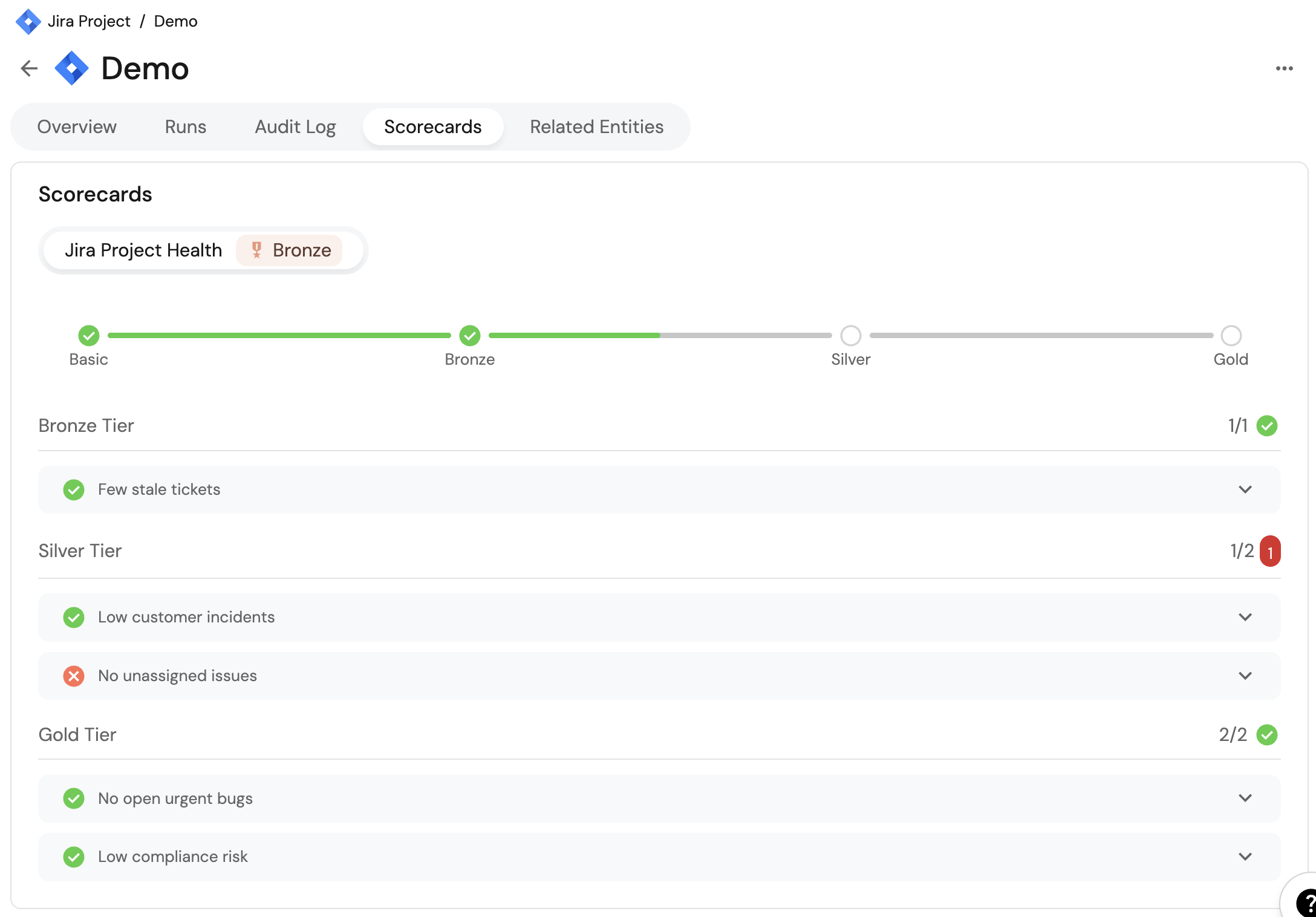
{"identifier": "JiraProjectHealth","title": "Jira Project Health","levels": [{"color": "paleBlue","title": "Basic"},{"color": "bronze","title": "Bronze"},{"color": "silver","title": "Silver"},{"color": "gold","title": "Gold"}],"rules": [{"identifier": "staleTicketsLow","title": "Few stale tickets","description": "Checks if the project has fewer than 10 stale tickets","level": "Bronze","query": {"combinator": "and","conditions": [{"property": "staleTickets","operator": "<=","value": 10}]}},{"identifier": "customerIncidentsLow","title": "Low customer incidents","description": "Checks if the project has fewer than 5 recent customer-facing incidents","level": "Silver","query": {"combinator": "and","conditions": [{"property": "frequentCustomerIncidents","operator": "<=","value": 5}]}},{"identifier": "noUnassignedIssues","title": "No unassigned issues","description": "Checks if all issues are assigned","level": "Silver","query": {"combinator": "and","conditions": [{"property": "issuesWithoutAssignee","operator": "=","value": 0}]}},{"identifier": "noUrgentBugs","title": "No open urgent bugs","description": "Checks that there are no urgent priority bugs open","level": "Gold","query": {"combinator": "and","conditions": [{"property": "openUrgentBugs","operator": "=","value": 0}]}},{"identifier": "lowComplianceRisk","title": "Low compliance risk","description": "Checks that there are fewer than 10 compliance issues open","level": "Gold","query": {"combinator": "and","conditions": [{"property": "totalComplianceIssues","operator": "<=","value": 10}]}}]} -
Click on
Saveto create the scorecard.
After setting up the scorecard metrics on the Jira blueprint, it should look like this: